


Highlights
- A step-by-step guide to changing the title in WHMCS from the admin panel.
- Techniques for WHMCS title customization using template files for unique page titles.
- Tips to enhance branding with a complete WHMCS branding setup including logos and favicons.
- SEO-focused advice to update WHMCS page titles with relevant keywords for better search engine rankings.
- Solutions to troubleshoot common issues while modifying WHMCS site titles or template files.
For web hosting companies, WHMCS is a popular platform for handling invoicing, support, and automation activities. Making sure your WHMCS title reflects the essence of your business is a crucial part of developing a polished and branded experience.
This article will bring you through the procedure step-by-step of “how to change title whmcs” whether you wish to modify it for SEO purposes or to suit your branding. By the end, you’ll be able to confidently modify the WHMCS site title and improve your website’s overall appearance and functionality.
However, if you want a professional to handle such technicalities, you can refer to our custom web development services anytime.
Why Customize the WHMCS Title?
Customizing your WHMCS title is a small but important task. This is why it’s important:
Branding Consistency: Your brand identity is strengthened by a well-written title.
Better User Experience: Through browser tabs, users can easily recognize your website and services.
SEO Optimization: Titles help draw in potential clients and affect search engine rankings.
All that is needed to change the WHMCS site title is a basic understanding of WHMCS.
How to Modify the Title in WHMCS
The methods to assist you in changing the title of your WHMCS website are as follows:
Access the WHMCS Admin Area by logging in.
Enter your WHMCS admin panel login information to get started. To make the adjustments, you’ll need administrative rights.
Access General Settings
- Navigate to the top menu and click on “Setup”.
- From the dropdown, select “General Settings”.
- You’ll land on a page with multiple tabs for customizing WHMCS settings and WHMCS general settings configuration.
Modify the WHMCS Site Title
- In the “General Settings” page, under the “General” tab, locate the field labeled “Company Name”.
- Enter the desired title for your WHMCS site. All WHMCS emails and pages will have this as their primary title.
- This is also where you can edit company name WHMCS or change site title WHMCS admin.
- Click the Save Changes button at the bottom of the page to save the modifications.
Note: Unless otherwise specified in certain templates, the title given here will be used as the default site title.
Tailor Titles to Specific Pages
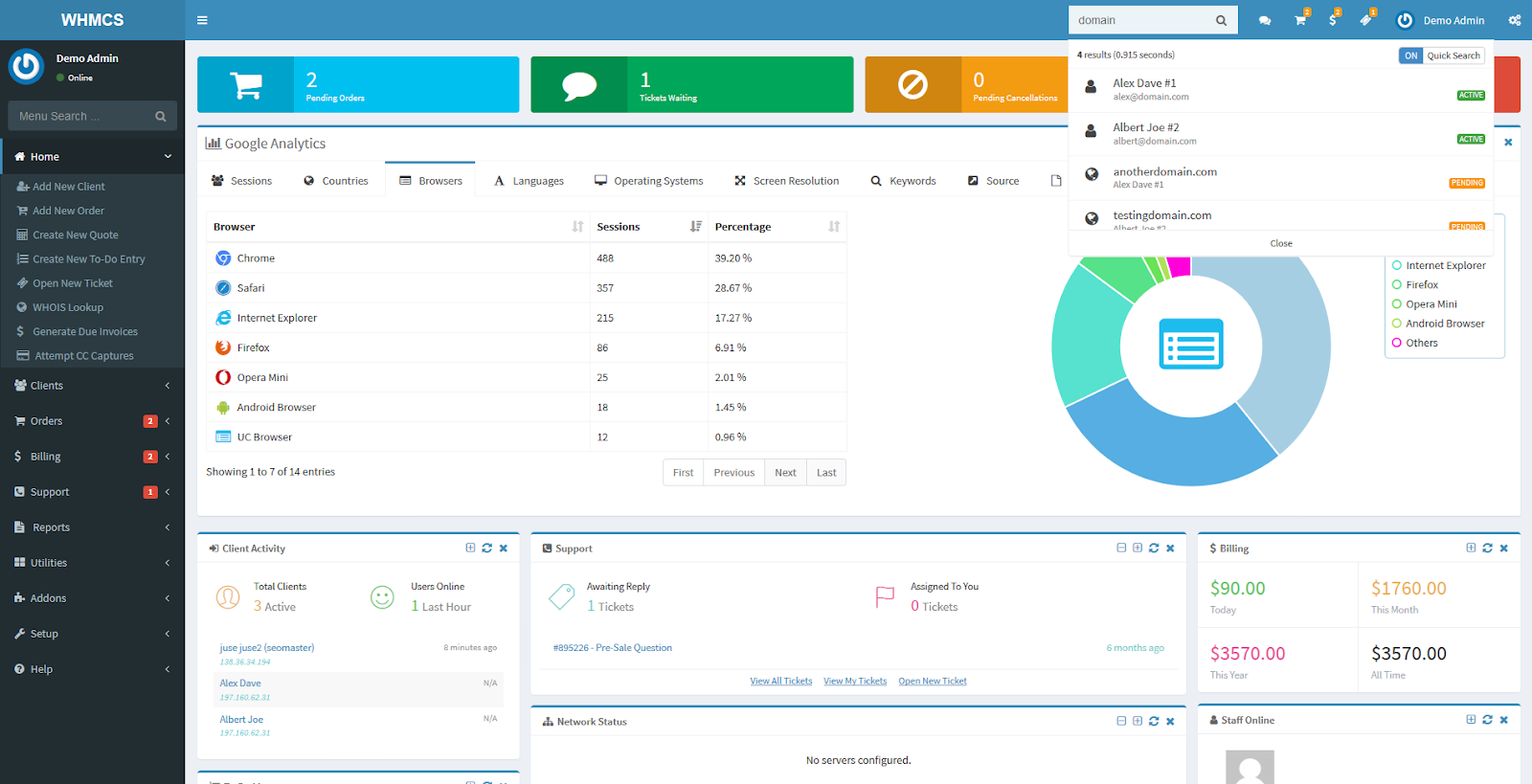
Use these procedures to set distinct titles for various pages (such as billing, support, or custom pages):
Editing Template Files
• Use File Manager or FTP to access your WHMCS directory.
• Choose the active template you’re using by navigating to the `templates/` folder.
• Launch a text editor and open the `header.tpl` file.
Adding a Dynamic Page Title
The following dynamic code can be used to set a page-specific title inside
Enter the desired text in lieu of “Your Custom Title.” This enables you to change the page title dynamically according to the active page.
Example for a Custom Support Page
- html
<title>{if $pagetitle}{$pagetitle}{else}Support | Your Company Name{/if}</title>
- After making the changes, save the file and upload it back to the server.
Update Titles for SEO Purposes
You can change the WHMCS site title to improve your website’s SEO performance in addition to making it ADA-compliant. Keywords like “web hosting,” “billing automation,” or certain services your company provides can be included. For example:
html
<title>Affordable Web Hosting Solutions | WHMCS Title Customization</title>
Use this approach to make your page titles more descriptive and keyword-rich, helping to attract more traffic to your site.
Advanced WHMCS Branding Setup
A full WHMCS branding setup entails more than just upgrading titles, even if it is a crucial initial step. For a unified look, think about altering further branding components as part of your WHMCS branding customization:
Update Logos and Favicons
- Navigate to Setup > General Settings and upload a custom logo.
- Replace the favicon by adding your icon file to the `/assets/img/` directory.
Customize the Header and Footer
Edit the `header.tpl` and `footer.tpl` files to include your branding elements like taglines, contact details, or social media links.
Modify Email Templates
In the admin area, go to Setup > Email Templates. Customize the subject line and body content to reflect your company branding.
Troubleshooting Common Issues
- While altering the WHMCS page title is a simple task, there may be some problems. Here’s how to fix them:
- If the changes aren’t showing up, try clearing the cache in your browser or refreshing the page.
- Ensure you don’t accidentally delete or modify critical code when editing `header.tpl`.
- Make sure your WHMCS installation is using the right template file.
Conclusion
We hope you got your answer to “how to change the title WHMCS”. Creating a professional and branded website requires customizing the title in WHMCS. The procedures described in this tutorial will assist you in achieving your objectives, whether you want to alter the title in WHMCS for branding purposes or to enhance your SEO.
You can make your website stand out to both customers and search engines by taking the time to set up your WHMCS title and branding correctly. You can take Tambena Consulting assistance as well in this regard. To keep your titles current with industry developments and your company’s demands, our professionals will examine and update them on a regular basis.
Give your WHMCS website the clean, businesslike appearance it deserves!
FAQs
Can I give each page a distinct title?
Yes, you can use conditional logic or dynamic variables in the `header.tpl` file to change the titles of specific pages.
Can the WHMCS title be altered without changing the code?
You can modify the main site title from the admin section under General Settings, but you’ll need to modify template files for more complex customisation, such as page-specific names.
How does the WHMCS title impact SEO?
One of the first things search engines look at is your WHMCS title. You can increase your exposure in search results by adding pertinent keywords like “WHMCS title customization” or “Modify WHMCS site title.”